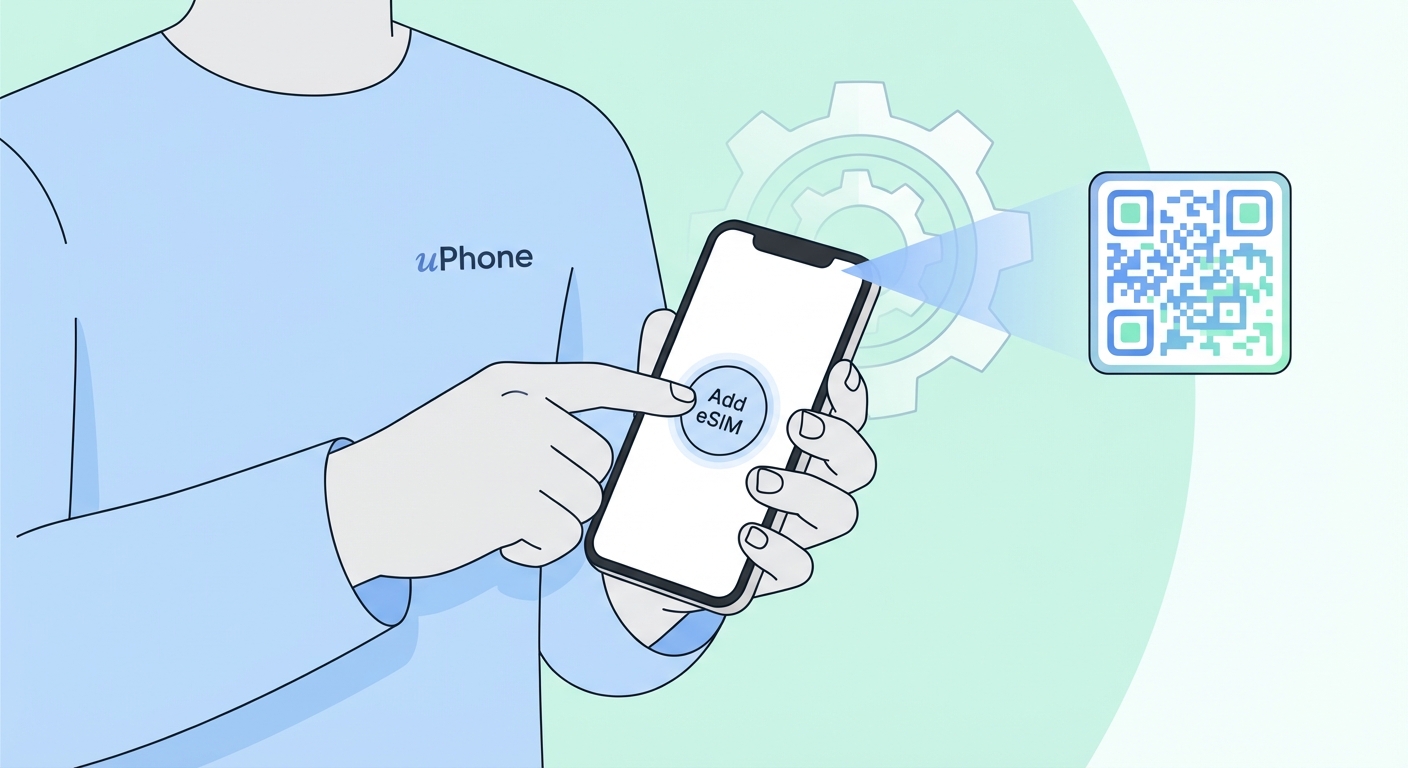
Installing an eSIM on iPhone
Under 2 minutes from QR code to working data. Any iPhone XS or later handles it — iPhone 11, 12, 13, 14, 15, 16, 17 and whatever Apple ships next. The steps below cover activation.
Also available: Installing an eSIM on Android
First, check this: Two requirements. An eSIM-capable iPhone (XS or later) that is not carrier-locked, and Wi-Fi to download the eSIM profile.
Adding an eSIM to Your iPhone — Step by Step
Open the Onetel email from your iPhone, then press and hold the QR code until the popup shows up. Tap "Add eSIM" — done in seconds, and Settings never comes into it.
The eSIM can be installed ahead of your trip and switch it on once you land. The path: Settings → Cellular → your eSIM plan → toggle on or off whenever you want.
iPhone eSIM Problems — And How to Fix Them
On an Android phone instead? See the Android setup steps →