eSIM Troubleshooting

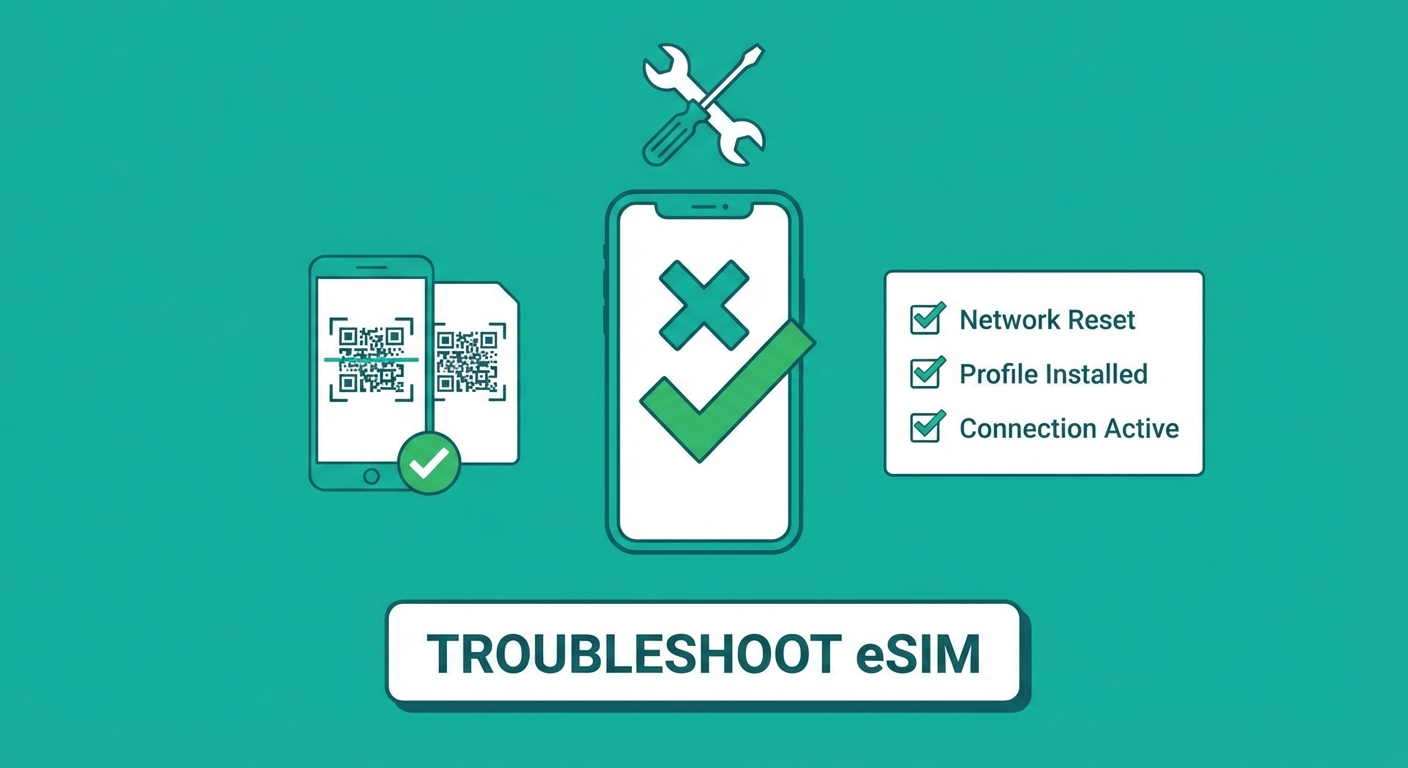
Work through the fixes that solve most eSIM problems — QR code errors, missing signal, data that won't connect, and activations that fail. If you haven't installed your eSIM yet, begin with the installation guide.

Problem 1

QR code won't scan

1
Wipe your camera lens — fingerprints often block the scan.
2
Move to better light. QR codes need strong contrast to be read.
3
Adjust the scanning distance — 15–25 cm is the sweet spot.
4
When scanning from another screen, lower the brightness a little to cut glare.
5
Fall back on the manual entry code — every QR code has an alphanumeric code printed beneath it.
6
Make sure the QR code hasn't expired. Most are valid for 24–48 hours after issue.
Important

QR codes typically stay valid for 24–48 hours after they are issued. Install your eSIM as soon as you buy it. If the code has lapsed, ask support for a fresh one.

Problem 2

eSIM installed, but no signal

1
Make sure the carrier network is set to automatic, not manual. Go to Settings > Cellular > Network Selection > Automatic.
2
Switch Airplane mode on, wait 10 seconds, then switch it off. This prompts the phone to re-register with the network.
3
Reboot your phone completely. A full restart clears many connection problems.
4
Check the APN settings for your eSIM provider. Some providers need the APN set up by hand.
5
Turn Data Roaming ON for your eSIM line — this is necessary when you're using local networks overseas.
Problem 3

Connected, but no data

You have signal bars but no internet. This usually points to an APN (Access Point Name) configuration problem.

iPhone — set APN manually
  1. Settings > Mobile Data > Mobile Data Network
  2. Set APN to the one in your order email
  3. Leave username and password empty unless told otherwise
  4. Switch Airplane mode off, then on
Android — set APN by hand
  1. Settings > Connections > Mobile networks > Access Point Names
  2. Tap + to create a new APN
  3. Enter the APN from your order confirmation
  4. Save, then reboot your phone

Onetel note: Onetel APN details arrive automatically with your eSIM. If data still won't connect, restart your phone after installing.

Problem 4

eSIM activation failed

Activation stuck? Three common culprits — and what to check next. For a full list of compatible devices, see the eSIM vs physical SIM compatibility table.

Device is carrier-locked
Phones locked to a specific carrier (often on subsidised plans) block third-party eSIMs.
Fix: Ask your carrier to unlock it. Most do this free after 12 months of contract.
eSIM limit reached
iPhones hold up to 8 eSIM profiles but only 2 active at once. Full slots stop new eSIMs from loading.
Fix: Head to Settings > Cellular and remove an inactive eSIM profile to make room.
QR code already used
Every eSIM QR code works once. If you've scanned it—even when setup failed—that code is spent.
Fix: Ask your eSIM provider for a fresh QR code. They'll check your order and send a replacement.

Still stuck?

Contact Onetel support

Our support team replies within a few hours. When you write in, keep your order number and device model close—this cuts resolution time sharply. Need to move your eSIM to another phone? Check the eSIM transfer guide.
Have ready: order number · device model · iOS/Android version · what went wrong
Contact support
eSIM troubleshooting guide

Browse eSIM plans

Coverage in 190+ countries, QR activation in minutes, and 24/7 support. You are online before you leave the airport.