Moving Your eSIM to a New Phone

A direct guide for same-brand and cross-platform eSIM transfers when you upgrade your handset.

Before you begin 1

Confirm these 3 items first

1
Does your new phone support eSIM?
See our <a href="/esim/esim-vs-physical-sim" style="color:var(--brand-text, var(--brand-primary));font-weight:600;">compatibility guide</a> — iPhone XR (2018) or later, Samsung Galaxy S20+ (2020) or later, Google Pixel 3 or later.
2
Is your new phone carrier-unlocked?
A carrier-locked phone won't accept third-party eSIMs. Contact your carrier to unlock if needed.
3
Do you have your eSIM provider account login handy?
You'll need access to your order or account to request a new QR code if required.
Important

Most eSIM plans can only be transferred once. Check with your provider first — they'll tell you if a transfer is possible and how to do it.

iPhone to iPhone 2

iPhone to iPhone transfer

iOS 16 and later include Quick eSIM Transfer — Apple's built-in tool that moves your eSIM without a new QR code.

Method 1 — Quick Transfer (iOS 16+)
1
On your old iPhone: Settings > Cellular > [plan name] > Move to new phone
2
Hold your new iPhone close to your old one
3
Follow the prompts on both phones
4
Your eSIM moves over automatically — no QR to scan
Method 2 — Manual (any iOS version)
1
Ask your eSIM provider for a new QR code tied to your order
2
Keep the eSIM on your old phone until the new QR is in hand
3
On the new iPhone: Settings > Cellular > Add eSIM > Use QR Code
4
Scan the fresh QR — the plan activates on the new device
5
Once it works, remove the old profile from your previous iPhone

Leave the eSIM on the old phone until you've verified it's live on the new one.

Android to Android 3

Android to Android transfer

Moving an eSIM between Android phones isn't universal — it depends on the manufacturer. Most devices follow a similar path, but some Samsung models can shift it directly with the Samsung Switch app. If setup stalls, refer to the eSIM troubleshooting guide.

1
On the old Android: go to Settings > About phone > EID and note the number
2
Tell your eSIM provider your order number and the new device's EID
3
Ask for a fresh QR code aimed at the new handset
4
On the new Android: open Settings > Connections > SIM card manager > Add eSIM
5
Scan the new QR code your provider sent over
6
Check data works, then delete the profile from the old phone

Samsung tip: Galaxy phones on One UI If your phone runs Samsung Switch (Settings > Accounts and backup), you might transfer directly. Works on 5+ models — check your old device first.

Cross-platform 4

Switching between iPhone and Android

You cannot move an eSIM automatically from one platform to another. The only route is the manual one: ask your provider to issue a fresh QR code.

1
Get in touch with your eSIM provider, quote your order number and say you\'re changing platforms
2
Give the EID of your new Android phone, or confirm it\'s an iPhone that supports eSIM
3
Ask for a new QR code — the provider checks eligibility and sends one
4
Scan the new QR code on the new device and follow the usual installation steps
5
Make sure data works before you treat the transfer as done

Note: There\'s no automatic way to transfer across platforms. When moving between iOS and Android, always use the manual QR code method.

Factory reset 5

What happens if I reset my phone?

Good news — a factory reset usually keeps your eSIM profile intact

On most devices, eSIM profiles live in a dedicated secure chip and are not erased during a factory reset. After restoring, go to Settings > Cellular — your eSIM plan should still be there. Once your new device is ready, think about using Dual SIM to run your home number and a travel eSIM at the same time.

Still missing after a restart? Ask your provider to issue a fresh QR code tied to your original purchase.
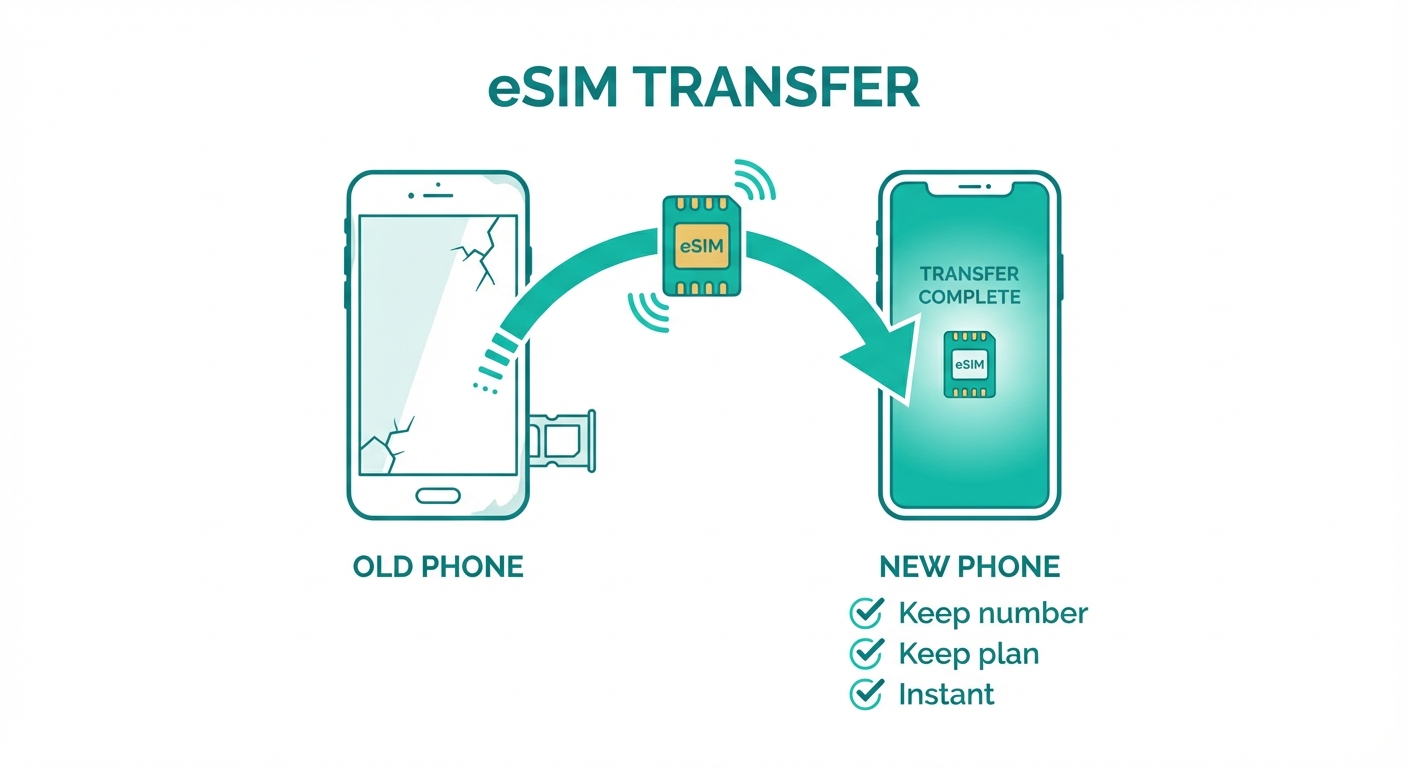
Transfer eSIM to new phone

Get a Onetel eSIM for your new phone

Already have a new device? Browse Onetel plans and be connected in minutes.