How to Set Up and Turn On a VPN on a Samsung Phone
Find the built-in VPN menu, add a provider app or manual profile, and turn the connection on. Menu wording can vary by model, carrier and One UI version.
Where is VPN on a Samsung phone?
Samsung's documented path is Settings → Connections → More connection settings → VPN.
Does Samsung have a built-in VPN?
Galaxy phones include Android's VPN profile controls. That menu manages a VPN connection; it is not a universal free VPN subscription. You still need provider details or an app.
How do I turn VPN on?
Open your installed VPN app and tap Connect, or open the VPN menu, select the saved profile, enter its credentials and tap Connect.
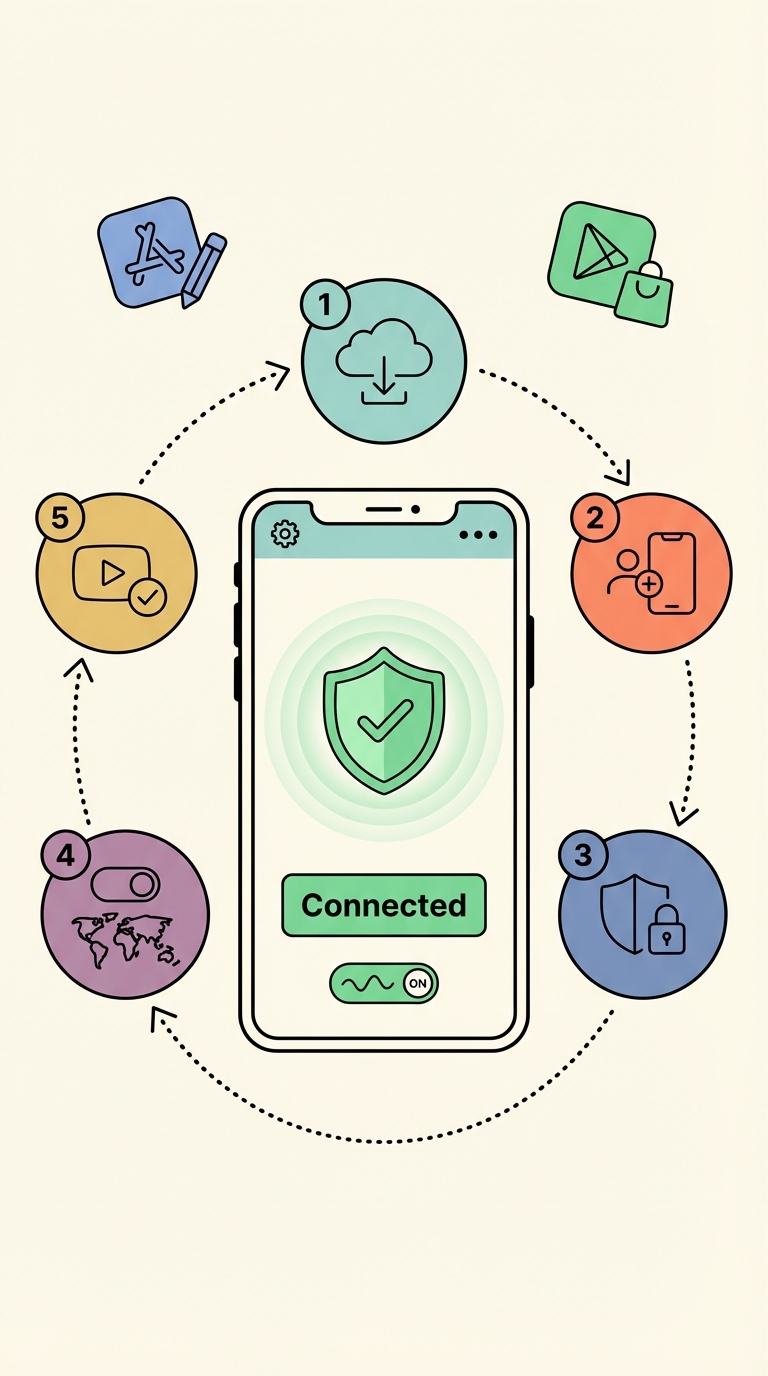
Samsung VPN setup — 6 steps
Open Galaxy Store or Google Play and install your VPN
Open either the Galaxy Store or Google Play. Search for your VPN app (e.g. "NordVPN", "ExpressVPN", "Surfshark"). Install the official app. The Google Play version is generally more up-to-date and recommended.
For China: also download the APK from the provider's website before you travel as a backup.
Create an account and sign in
Sign up on the provider's website and complete payment before installing. Open the app and sign in with your credentials. Do this at home — VPN sign-up sites may be blocked in some countries.
Allow the VPN connection request
Samsung's One UI will show a popup: "Your VPN provider wants to set up a VPN connection" → tap OK. Your VPN status icon will appear in the notification bar when connected.
Find the manual VPN menu if your provider gave you settings
Open Settings → Connections → More connection settings → VPN. Tap the menu or plus control to add the server name, VPN type and credentials supplied by your provider. Do not guess these values.
Enable obfuscation for restricted countries
Before visiting China, UAE, Iran, or Russia, go to the VPN app's Settings and enable obfuscation: "Obfuscated Servers" (NordVPN), "NoBorders Mode" (Surfshark), "Lightway" (ExpressVPN), or "StealthVPN" (Astrill). For China-specific instructions, read the <a href="/vpn/vpn-for-china" style="color:var(--brand-text, var(--brand-primary));font-weight:600;">VPN for China guide</a>.
Connect and test
Tap Connect, confirm the VPN indicator appears, then open a normal website and the services you actually need. A successful VPN connection does not guarantee that every app or website will be available.
Samsung documents VPN under Connections → More connection settings. See Samsung's VPN setup instructions. Features supplied by a provider app, such as a Quick Settings tile, depend on that app.
VPN issues on Samsung? Fix it